

-
Product Documentation
-
-
- Clear Global Caches
- Clean Temp Upload Folder
- Enabling Debug Mode
- Toggle Site for Maintenance
- How to configure (change color, font....) of current active theme
- How "Follow" feature work
- How to enable "Age limitation" for mooSocial site
- How to change "mooSocial branding" text at footer
- How to change site to Invite only mode
- How to Hide Site Content for Visitors - "Force login" setting
- How to by pass "force login" setting to show content of a specific plugin to visitors
- How does the "View feed from all members" in roles setting works
- How to modify sign up form and add more custom fields
- How to configure SMTP for email sending
- How to turn your community site to approved only mode
- How to activate Cookie Warning for your website
- Show Remaining Articles (1) Collapse Articles
-
- Setting up Cronjob
- Mailing Template & SMTP Mail Settings
- Creating and Editing Menus
- Enabling Follow Function
- Sitemaps and SEO Settings
- Remove powered by, mooSocial logo & favicon icon
- Access mooSocial Admin Dashboard
- Bulk Mail Settings
- How to setup mail Queue
- Auto Friend Function
- System settings
- Setup email of "contact us" form
- How to set default home page for logged in member
- How to configure (change color, font....) of current active theme
- How "Follow" feature work
- How to enable "Age limitation" for mooSocial site
- How to change "mooSocial branding" text at footer
- How to change site to Invite only mode
- How to Hide Site Content for Visitors - "Force login" setting
- How to by pass "force login" setting to show content of a specific plugin to visitors
- How does the "View feed from all members" in roles setting works
- How to modify sign up form and add more custom fields
- How to configure SMTP for email sending
- How to turn your community site to approved only mode
- How to remove mooSocial version and branding in Admin Panel
- How to activate Cookie Warning for your website
-
-
- Enable Subscribtions
- Creating Subscription Packages and Plans
- Setup Paypal Gateway
- Add google Adsense Widget Using Html Block
- How mooSocial subscription module works
- How to configure paypal express checkout payment gateway
- How mooSocial subscription module works
- How to add a new currency and set it as default currency for the system.
-
- How to configure mooApp
- How to enable Facebook and Google button for IOS app
- How To add new language into android app
- How to add push notification for app
- How to add/remove menu for android and IOS app
- Recommended coding environment for Android and IOS APP
- How to enable admob for mooSocial Android app
- How to enable admob mooApp on iOS"
- Fix push notification on mooSocial 3.1.4
- How to set up in apps purchase in Android (for client)
- How to set up in apps purchase in Android (for dev)
- How to configure (change color, font....) of current active theme
- How "Follow" feature work
- How to enable "Age limitation" for mooSocial site
- How to change "mooSocial branding" text at footer
- How to change site to Invite only mode
- How to Hide Site Content for Visitors - "Force login" setting
- How to by pass "force login" setting to show content of a specific plugin to visitors
- How does the "View feed from all members" in roles setting works
- How to modify sign up form and add more custom fields
- How to configure SMTP for email sending
- How to turn your community site to approved only mode
- How to activate Cookie Warning for your website
-
Plugins Documentation
-
- Get Direction to a Business
- How to Claim a Business
- Creating Package for Business
- Create & Manage Business Categories (Admin)
- How to verify a business?
- How to create a Sub-page?
- How to upgrade a Business?
- How-to feature my business
- How-to add business admin and configure permission to admins
- How the subscription feature of the business directory works
-
- How to set a daily livestream time limit for a specific user role?
- How to Purchase a Livestream Package and Start Streaming with Live Video plugin?
- How to create a Livestream Package (in-app Purchase) on Android?
- How to create a Livestream Package (In-App Purchase) on iOS?
- How to set the Livestream fee?
- How to create a Livestream Package on Web?
- How to enable Live Video plugin?
-
- How to save the search ?
- How to enable a pop-up asking members to update their location ?
- How to Find Nearby People ?
- How to enable the Age and Gender display ?
- How to use the Mapping Locations feature ?
- How to configure settings (Themes type, Default distance, Max distance, Default map position) for Who near me plugin ?
-
- Articles coming soon
-
- Articles coming soon
-
- Articles coming soon
-
- Articles coming soon
-
- Articles coming soon
-
- Articles coming soon
-
- Articles coming soon
-
- How to generate Agora App ID & Primary Certificate?
- How to enable Message plugin and limit sending messages?
- How to allow sending attachments in messages?
- How to enable and set pricing for Audio & Video call?
- How to Calculate Call Service Costs?
- How to generate keys and setup Pusher for real-time chat?
-
FAQ
- How to change default cover for desktop site and mobile app
- How to move your mooSocial site to another server
- How to translate / change closing network singup phrase on landing page
- mooSocial Self-Hosted - Step-by-Step Guide
- How to restart chat add-on if it is not working on your site?
- Remove Recent Joined Users from Close Network Landing Page
- How to config STUN and TURN servers for Video/audio chat plugin
- Build a scalable, load balancing for moosocial on DigitalOcean
- How to change content of "about us", "Policies" and "Terms of services"
- How to purchase new plugins and themes from mooSocial
- Setup email of "contact us" form
- How to change site to RTL
- How to add "Location" field into member profile
- Where the email will go if someone submit contact us form
- How to add a new currency and set it as default currency for the system.
- How to set default home page for logged in member
- How to change the "-" in profile address into other character
- How to remove mooSocial version and branding in Admin Panel
- Show Remaining Articles (3) Collapse Articles
-
mooSocial Cloud
- mooSocial Cloud - Step-by-Step Guide
- How to map mooCloud social network to your own domain name
- Upgrade your existing mooSocial cloud plan to new plan
- Cancel your existing mooSocial cloud plan
- How to start my own social network site with mooSocial cloud
- Install new language and translate your site to new language
-
mooStore
-
mooDating script
-
- How to restrict to ask member to upload profile picture?
- How to enable/disable the profile matching questions step at sign up process?
- Enable/disable location field
- How to allow member to add more interest item into system.
- Manage genders
- How does the home feed work?
- How does "find a match" and "encouters" works?
- How does the "Popularity" section work?
-
mooWP - social networking plugin for WordPress
Before you start syncing files to S3, you need to setup con job on your server:
Please Go to Admin dashboard –> System Admin –> Tasks to get the command line that you need to setup cronjob (see screenshot). You can setup cron via cpanel or ssh. Contact your hosting if you don’t know how to do that. Normally, the command line will be “wget -qO- ‘https://domain.com/cron/task/run?key=3FSE@’ &> /dev/null . Send this command line to your hosting if you want to ask them to help you.

Sync missing images, fonts, css and js to Amazon S3
If S3 is enabled and you find out some resources like CSS, font…are missing like the below screenshot. Please follow the below instructions to fix.
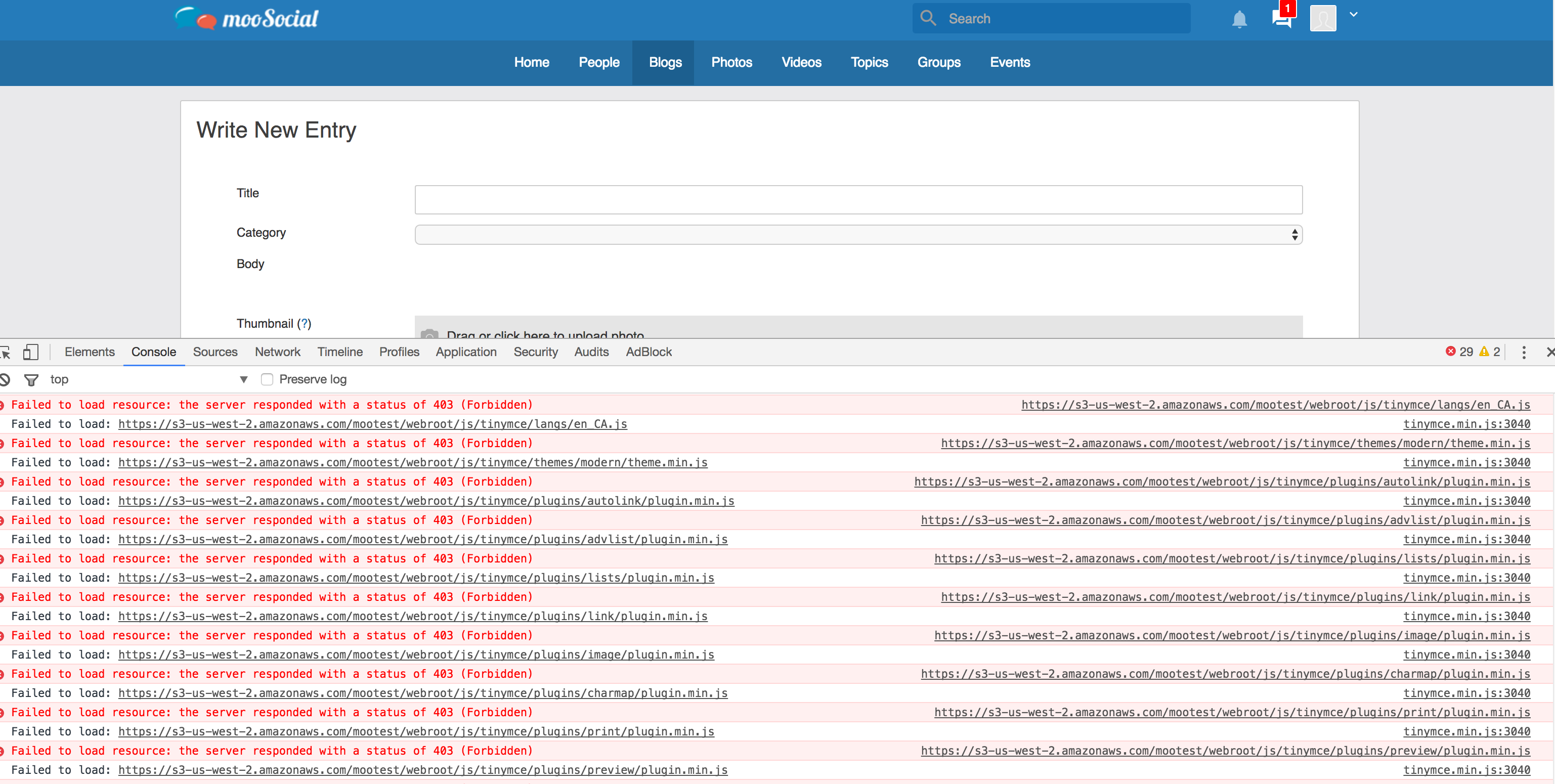
Go to admin dashboard –> System Admin –> Storage System –> Manage Storage Services. Click on “Synchronise webroot directory”, and you will see below popup.
Check Image, font, Cascading style sheets, Javascript then checking the folders under “Webroot” that you have not synced/transferred to S3 before.
For example, in the below picture you will transfer files (images, fonts, CSS and js) in “img” and “js” folder to S3
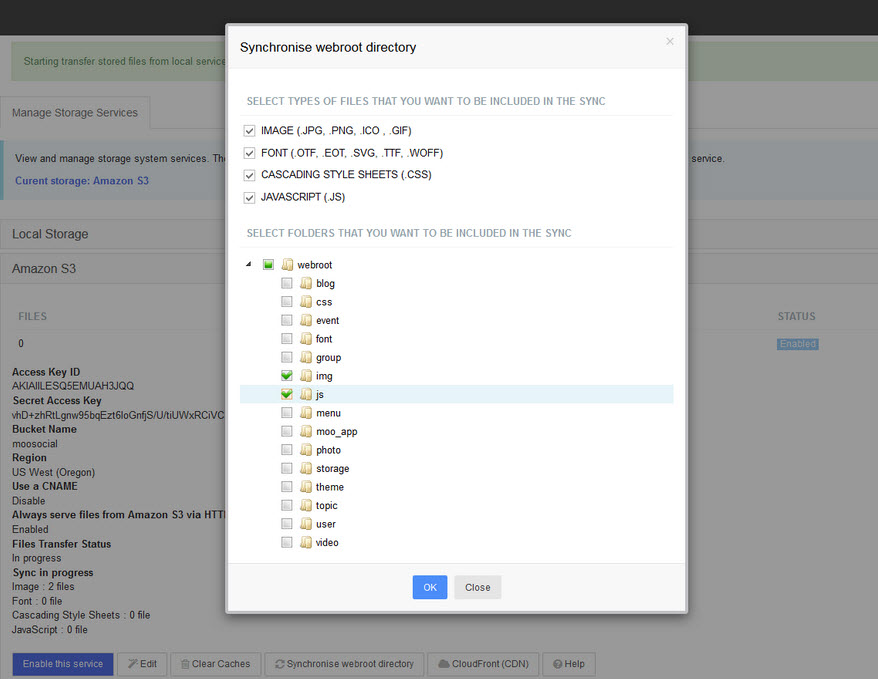
Click OK to start Sync progress. You need to wait for a few minutes or may a few hours in case you have a lot of files that need to upload from selected folders to S3. The cronjob that you set up above will do this job so that you can close the web browser by clicking on “OK” button to sync.
Transfer data to S3: In the setting page you will see a button called “Transfer”, please click on this button if you enable S3 after the site has launched a long time ago to manually transfer all data such image, video… that uploaded by members before s3 is enabled to Amazon.
Clear caches: If you have any problems after s3 is enabled. Clear caches and then try again.