

-
Product Documentation
-
-
- Clear Global Caches
- Clean Temp Upload Folder
- Enabling Debug Mode
- Toggle Site for Maintenance
- How to configure (change color, font....) of current active theme
- How "Follow" feature work
- How to enable "Age limitation" for mooSocial site
- How to change "mooSocial branding" text at footer
- How to change site to Invite only mode
- How to Hide Site Content for Visitors - "Force login" setting
- How to by pass "force login" setting to show content of a specific plugin to visitors
- How does the "View feed from all members" in roles setting works
- How to modify sign up form and add more custom fields
- How to configure SMTP for email sending
- How to turn your community site to approved only mode
- How to activate Cookie Warning for your website
- Show Remaining Articles (1) Collapse Articles
-
- Setting up Cronjob
- Mailing Template & SMTP Mail Settings
- Creating and Editing Menus
- Enabling Follow Function
- Sitemaps and SEO Settings
- Remove powered by, mooSocial logo & favicon icon
- Access mooSocial Admin Dashboard
- Bulk Mail Settings
- How to setup mail Queue
- Auto Friend Function
- System settings
- Setup email of "contact us" form
- How to set default home page for logged in member
- How to configure (change color, font....) of current active theme
- How "Follow" feature work
- How to enable "Age limitation" for mooSocial site
- How to change "mooSocial branding" text at footer
- How to change site to Invite only mode
- How to Hide Site Content for Visitors - "Force login" setting
- How to by pass "force login" setting to show content of a specific plugin to visitors
- How does the "View feed from all members" in roles setting works
- How to modify sign up form and add more custom fields
- How to configure SMTP for email sending
- How to turn your community site to approved only mode
- How to remove mooSocial version and branding in Admin Panel
- How to activate Cookie Warning for your website
-
-
- Enable Subscribtions
- Creating Subscription Packages and Plans
- Setup Paypal Gateway
- Add google Adsense Widget Using Html Block
- How mooSocial subscription module works
- How to configure paypal express checkout payment gateway
- How mooSocial subscription module works
- How to add a new currency and set it as default currency for the system.
-
- How to configure mooApp
- How to enable Facebook and Google button for IOS app
- How To add new language into android app
- How to add push notification for app
- How to add/remove menu for android and IOS app
- Recommended coding environment for Android and IOS APP
- How to enable admob for mooSocial Android app
- How to enable admob mooApp on iOS"
- Fix push notification on mooSocial 3.1.4
- How to set up in apps purchase in Android (for client)
- How to set up in apps purchase in Android (for dev)
- How to configure (change color, font....) of current active theme
- How "Follow" feature work
- How to enable "Age limitation" for mooSocial site
- How to change "mooSocial branding" text at footer
- How to change site to Invite only mode
- How to Hide Site Content for Visitors - "Force login" setting
- How to by pass "force login" setting to show content of a specific plugin to visitors
- How does the "View feed from all members" in roles setting works
- How to modify sign up form and add more custom fields
- How to configure SMTP for email sending
- How to turn your community site to approved only mode
- How to activate Cookie Warning for your website
-
Plugins Documentation
-
- Get Direction to a Business
- How to Claim a Business
- Creating Package for Business
- Create & Manage Business Categories (Admin)
- How to verify a business?
- How to create a Sub-page?
- How to upgrade a Business?
- How-to feature my business
- How-to add business admin and configure permission to admins
- How the subscription feature of the business directory works
-
- How to set a daily livestream time limit for a specific user role?
- How to Purchase a Livestream Package and Start Streaming with Live Video plugin?
- How to create a Livestream Package (in-app Purchase) on Android?
- How to create a Livestream Package (In-App Purchase) on iOS?
- How to set the Livestream fee?
- How to create a Livestream Package on Web?
- How to enable Live Video plugin?
-
- How to save the search ?
- How to enable a pop-up asking members to update their location ?
- How to Find Nearby People ?
- How to enable the Age and Gender display ?
- How to use the Mapping Locations feature ?
- How to configure settings (Themes type, Default distance, Max distance, Default map position) for Who near me plugin ?
-
- Articles coming soon
-
- Articles coming soon
-
- Articles coming soon
-
- Articles coming soon
-
- Articles coming soon
-
- Articles coming soon
-
- Articles coming soon
-
- How to generate Agora App ID & Primary Certificate?
- How to enable Message plugin and limit sending messages?
- How to allow sending attachments in messages?
- How to enable and set pricing for Audio & Video call?
- How to Calculate Call Service Costs?
- How to generate keys and setup Pusher for real-time chat?
-
FAQ
- How to change default cover for desktop site and mobile app
- How to move your mooSocial site to another server
- How to translate / change closing network singup phrase on landing page
- mooSocial Self-Hosted - Step-by-Step Guide
- How to restart chat add-on if it is not working on your site?
- Remove Recent Joined Users from Close Network Landing Page
- How to config STUN and TURN servers for Video/audio chat plugin
- Build a scalable, load balancing for moosocial on DigitalOcean
- How to change content of "about us", "Policies" and "Terms of services"
- How to purchase new plugins and themes from mooSocial
- Setup email of "contact us" form
- How to change site to RTL
- How to add "Location" field into member profile
- Where the email will go if someone submit contact us form
- How to add a new currency and set it as default currency for the system.
- How to set default home page for logged in member
- How to change the "-" in profile address into other character
- How to remove mooSocial version and branding in Admin Panel
- Show Remaining Articles (3) Collapse Articles
-
mooSocial Cloud
- mooSocial Cloud - Step-by-Step Guide
- How to map mooCloud social network to your own domain name
- Upgrade your existing mooSocial cloud plan to new plan
- Cancel your existing mooSocial cloud plan
- How to start my own social network site with mooSocial cloud
- Install new language and translate your site to new language
-
mooStore
-
mooDating script
-
- How to restrict to ask member to upload profile picture?
- How to enable/disable the profile matching questions step at sign up process?
- Enable/disable location field
- How to allow member to add more interest item into system.
- Manage genders
- How does the home feed work?
- How does "find a match" and "encouters" works?
- How does the "Popularity" section work?
-
mooWP - social networking plugin for WordPress
How to change color and customize theme in 3.1.5 or above?
1. Login to your admin dashboard
2. Go to Site manager > Theme Manager
3. Click Default Theme
4. Click Theme Settings Tab
5. Select Light to apply on Normal Theme
6. Select Section to customize
7. Appearance Setting
# Layout Tab
# Layout Tab > Body Section Setting

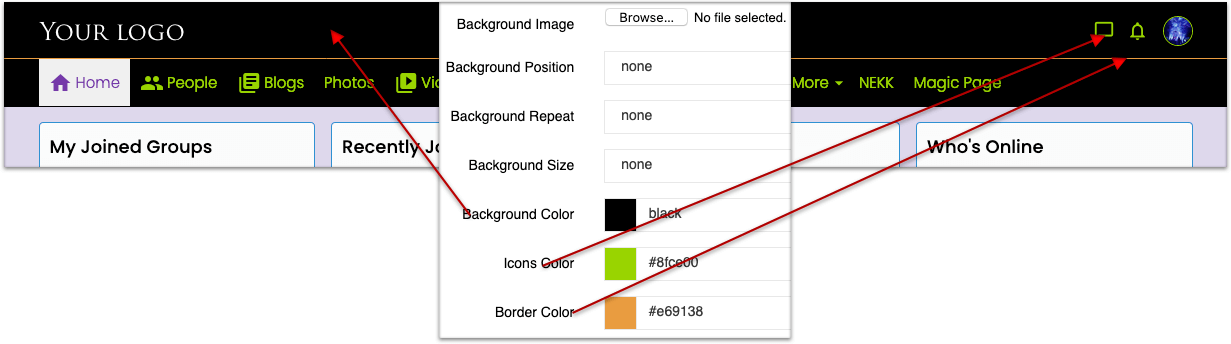
# Layout Tab > Header Section Setting
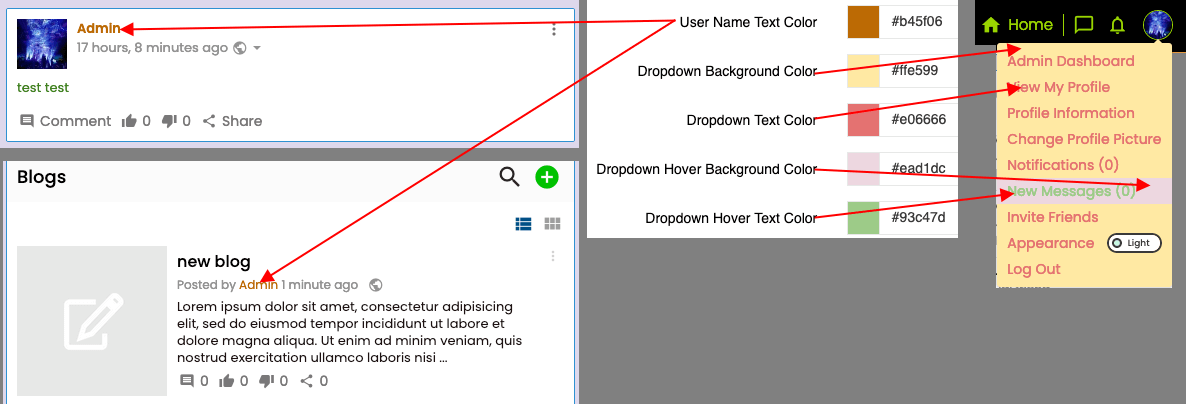
# Layout Tab > User section setting
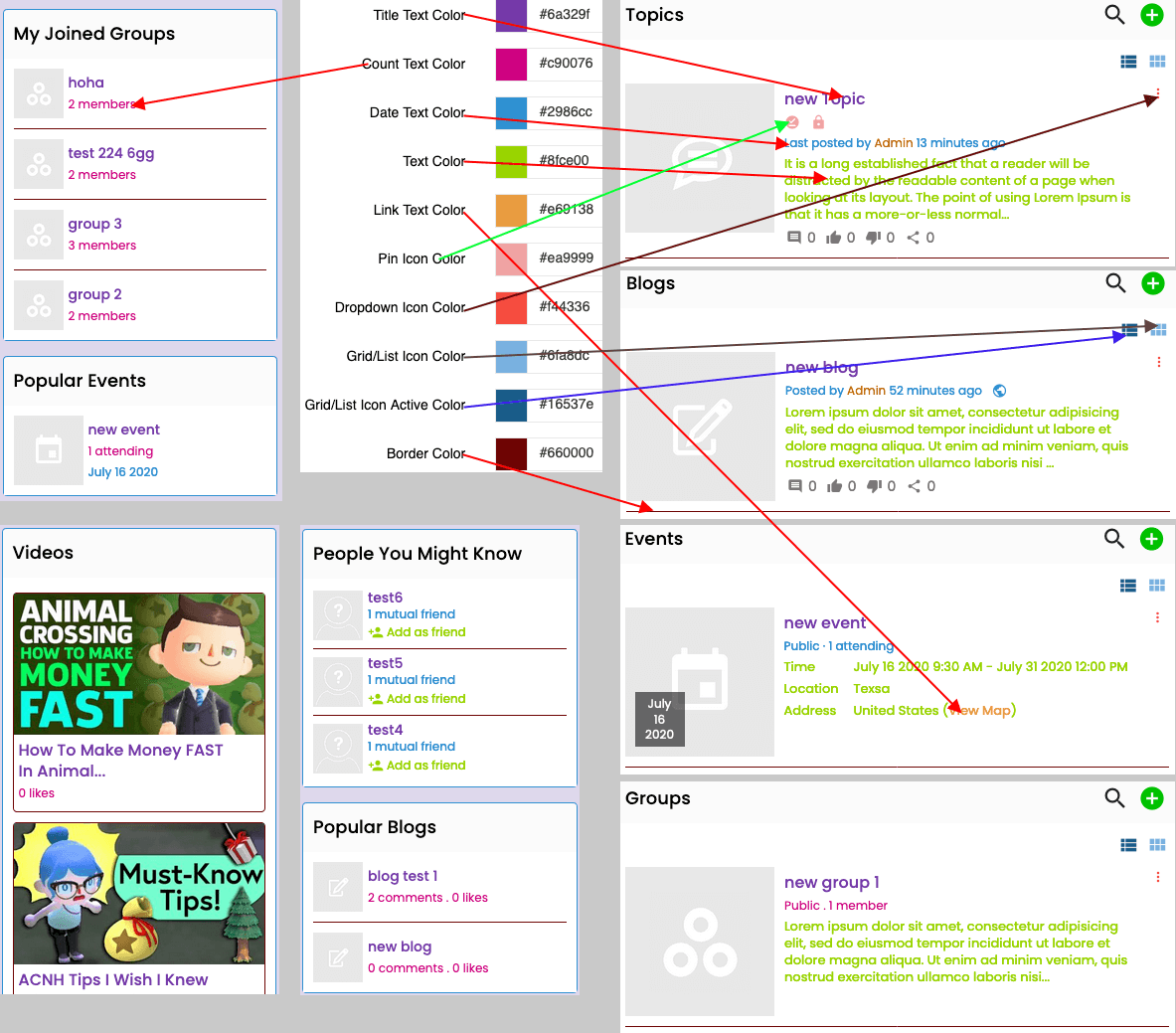
# Layout Tab > List Items Settings
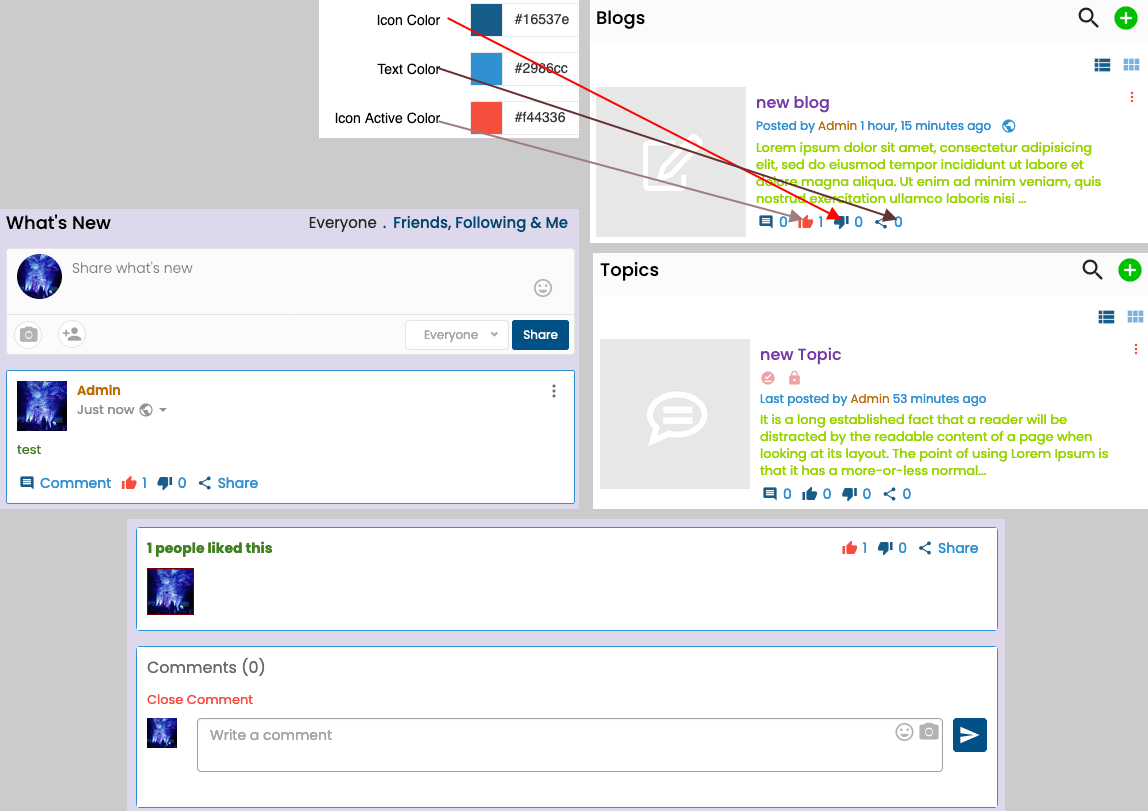
# Layout Tab > Like section settings
# Layout Tab > Footer
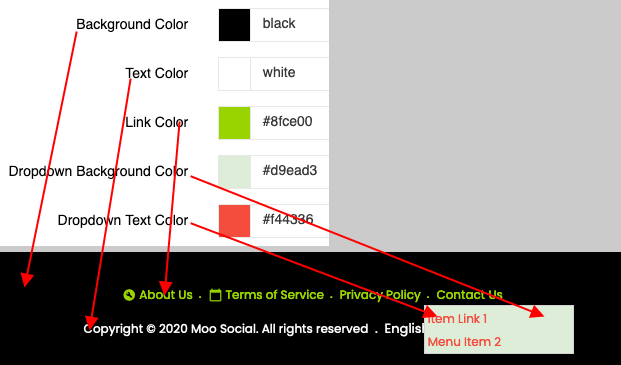
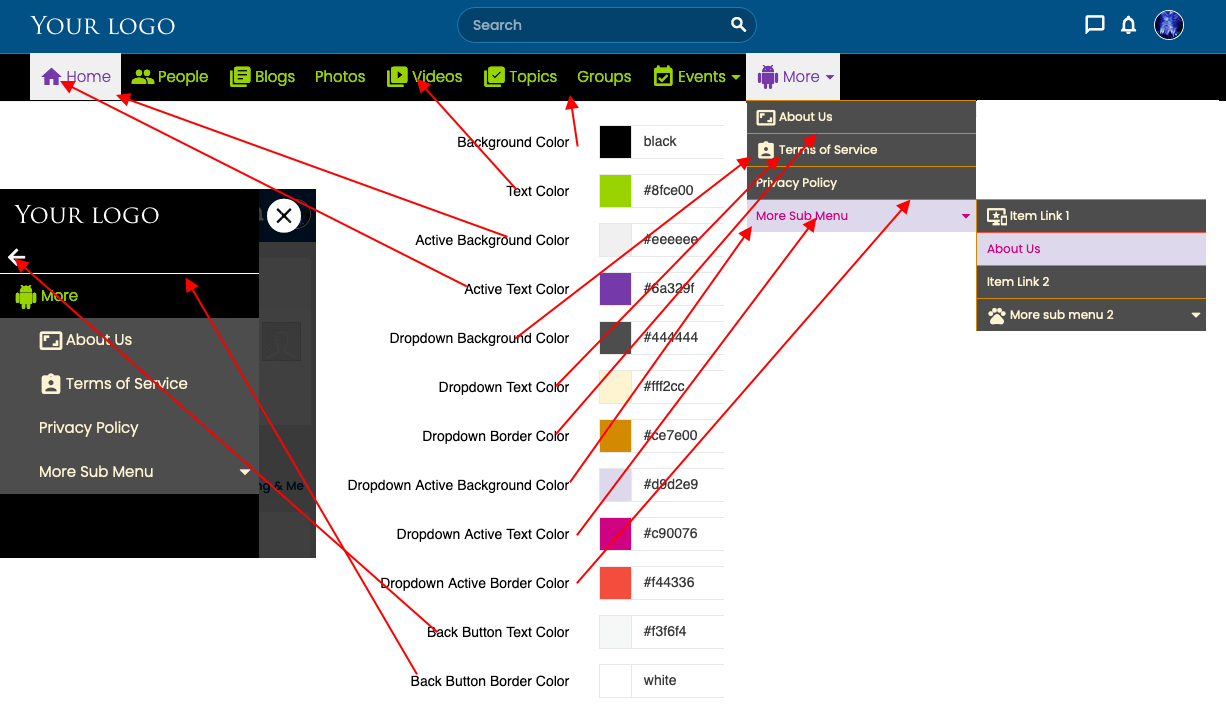
# Menu Section
# Menu > Navigation
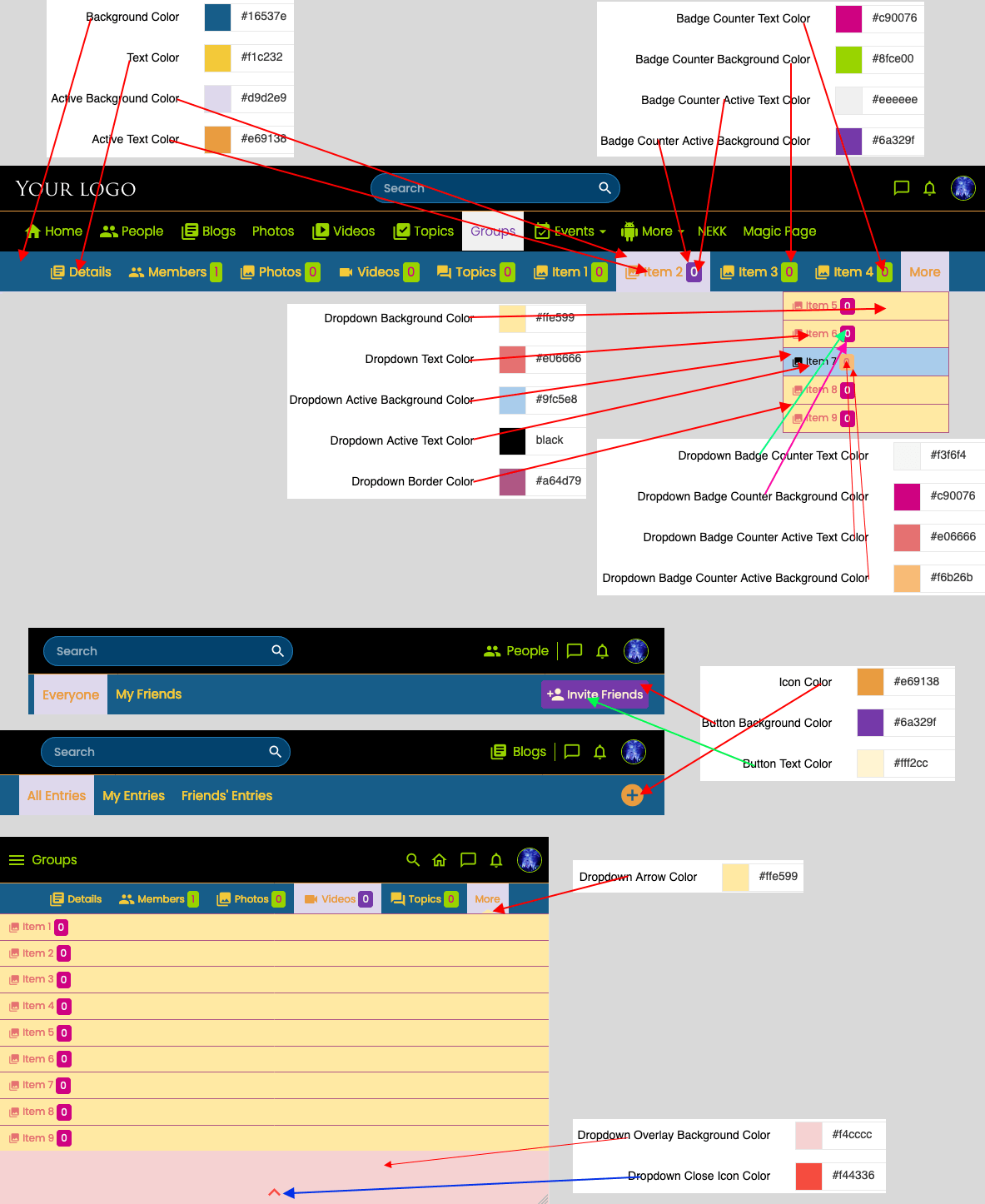
# Menu > Sticky Menu
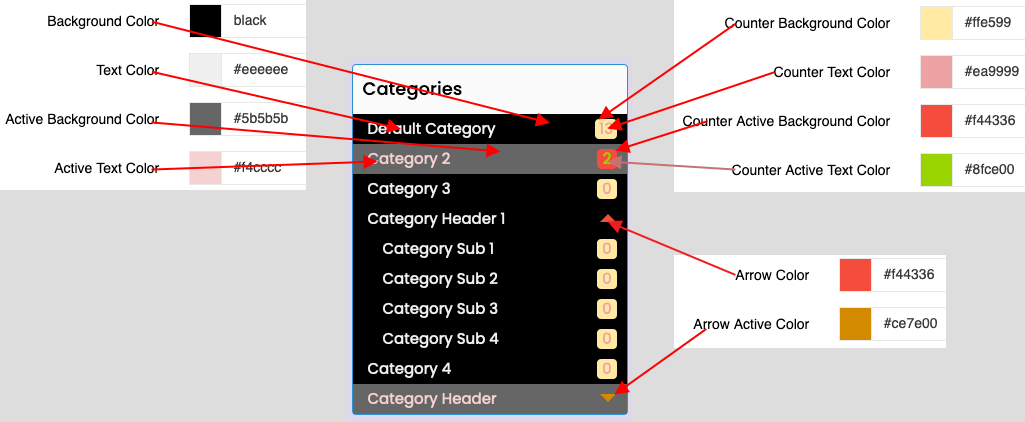
# Menu > Category Menu
# What’s New Section
# What’s New > Feed Header Section
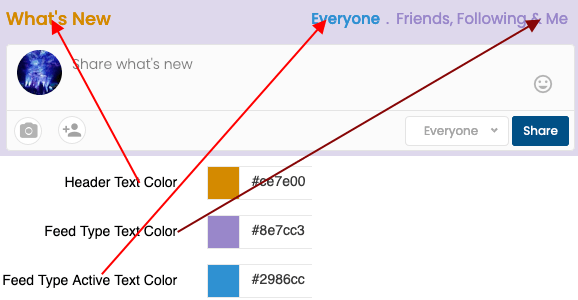
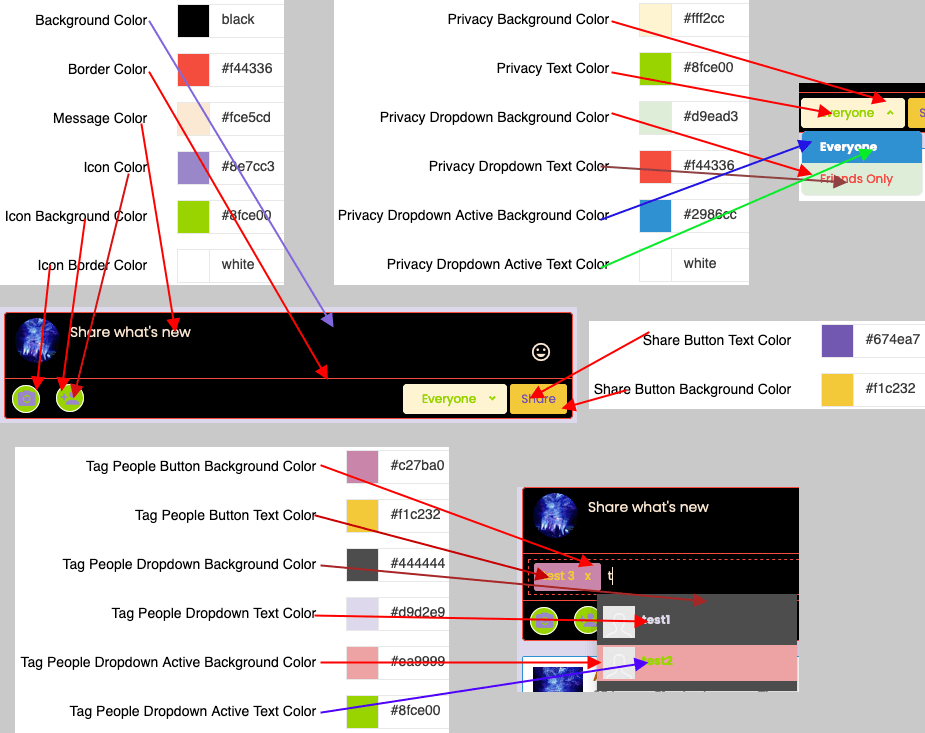
# What’s New > Status Box
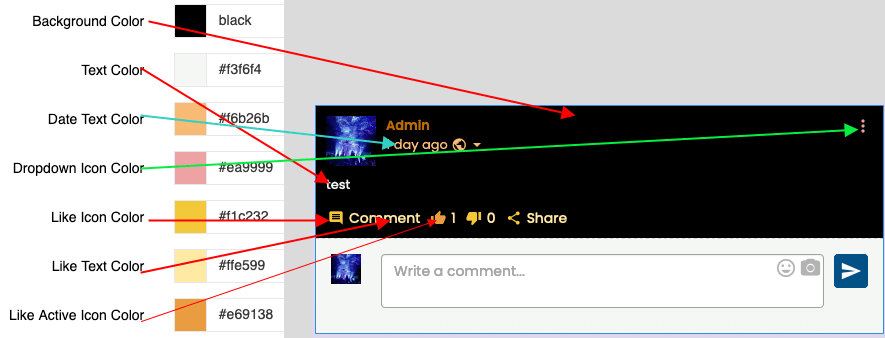
# What’s New > Feed Item
# What’s New > Feed Comment
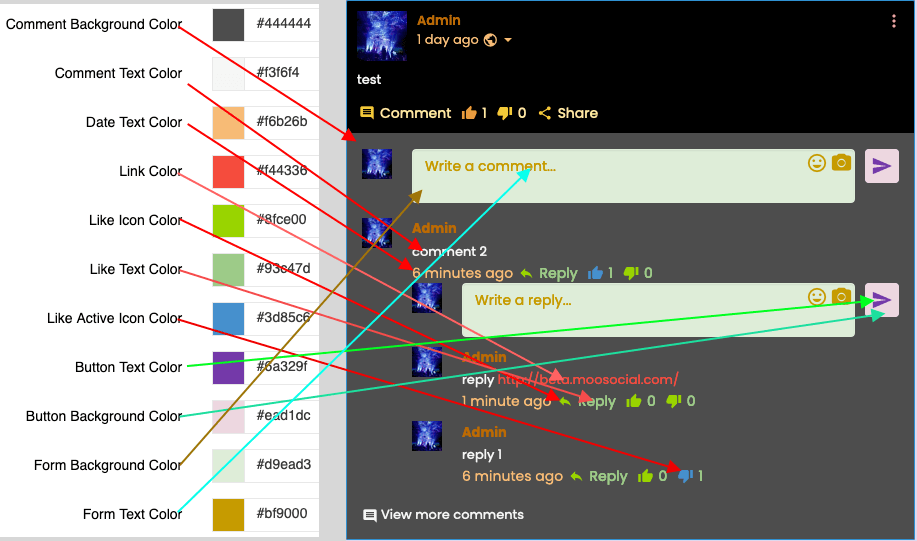
# Comment section
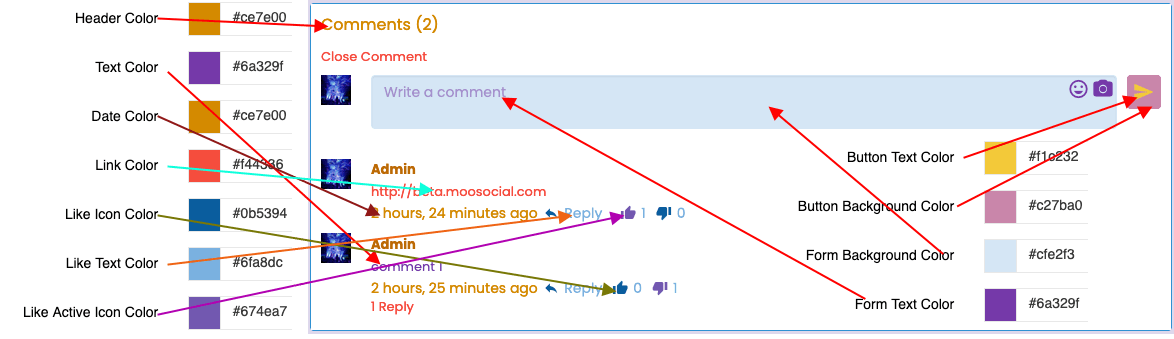
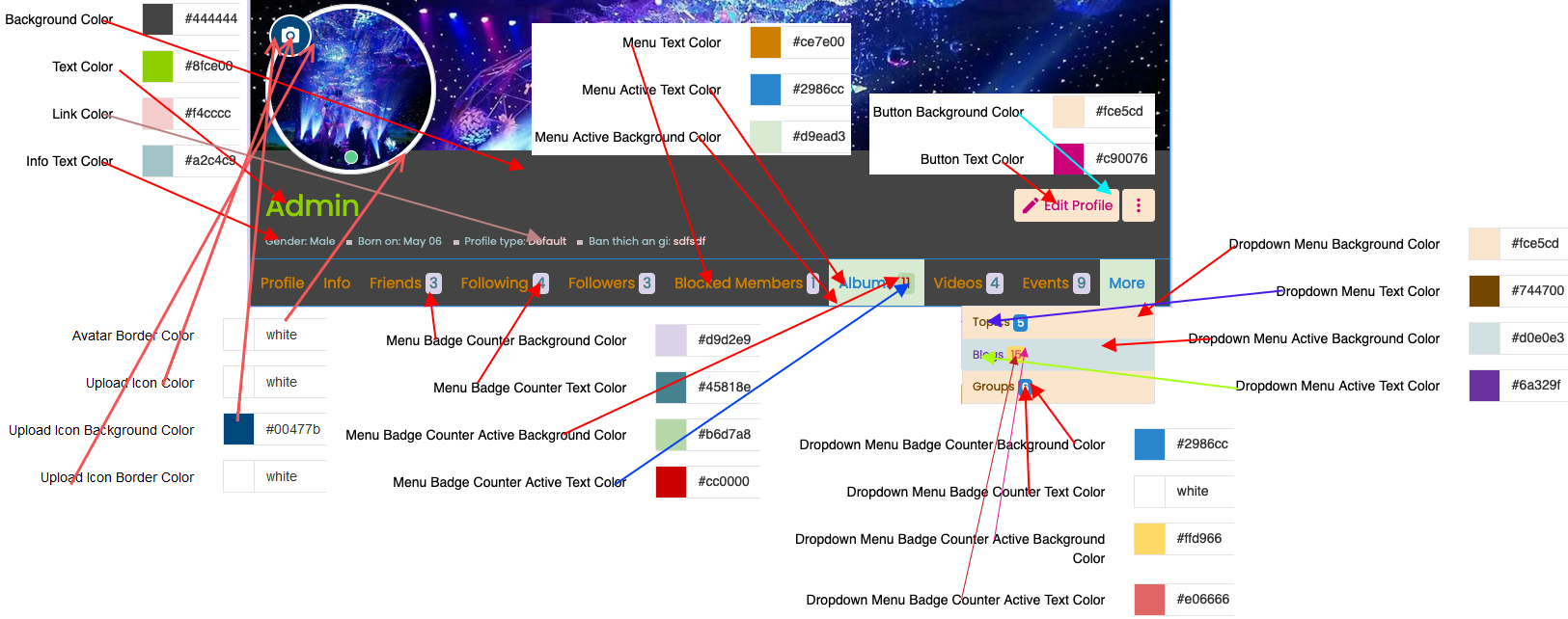
# Profile Section > Header Profile Section
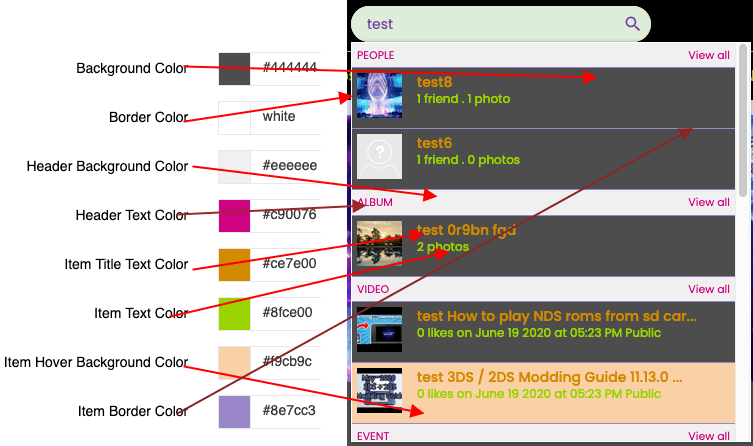
# Global Search Section

# Block Settings
# Block > Block
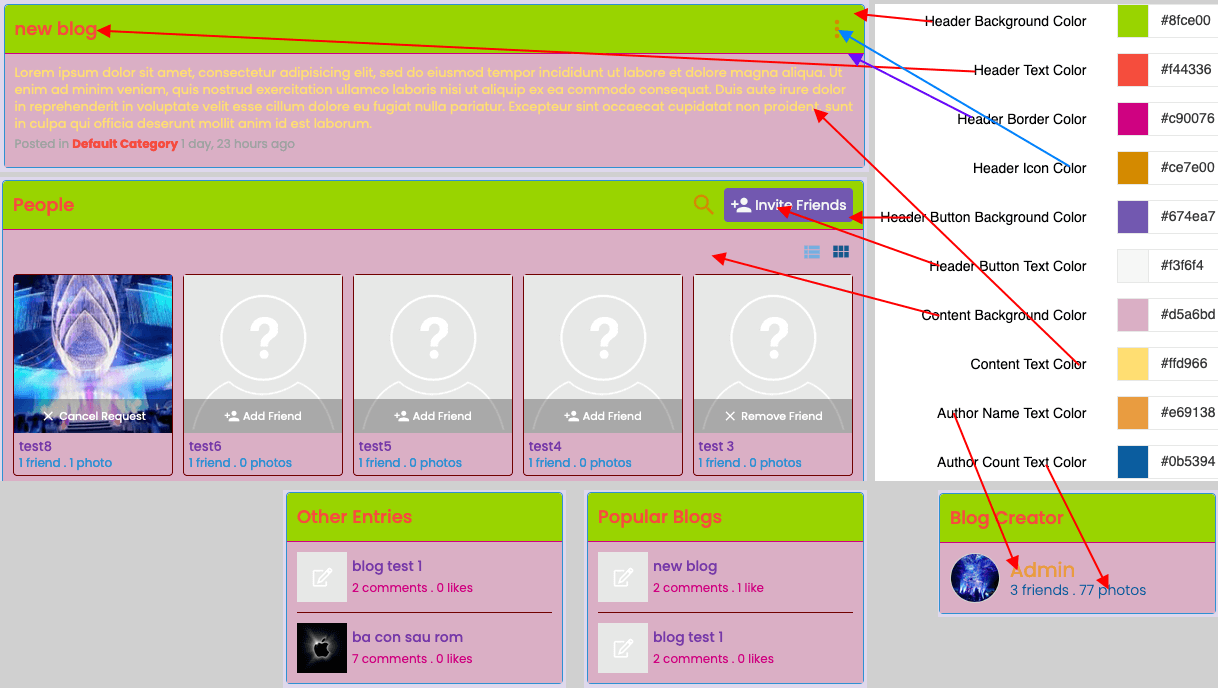
# Block > Content Search Setting
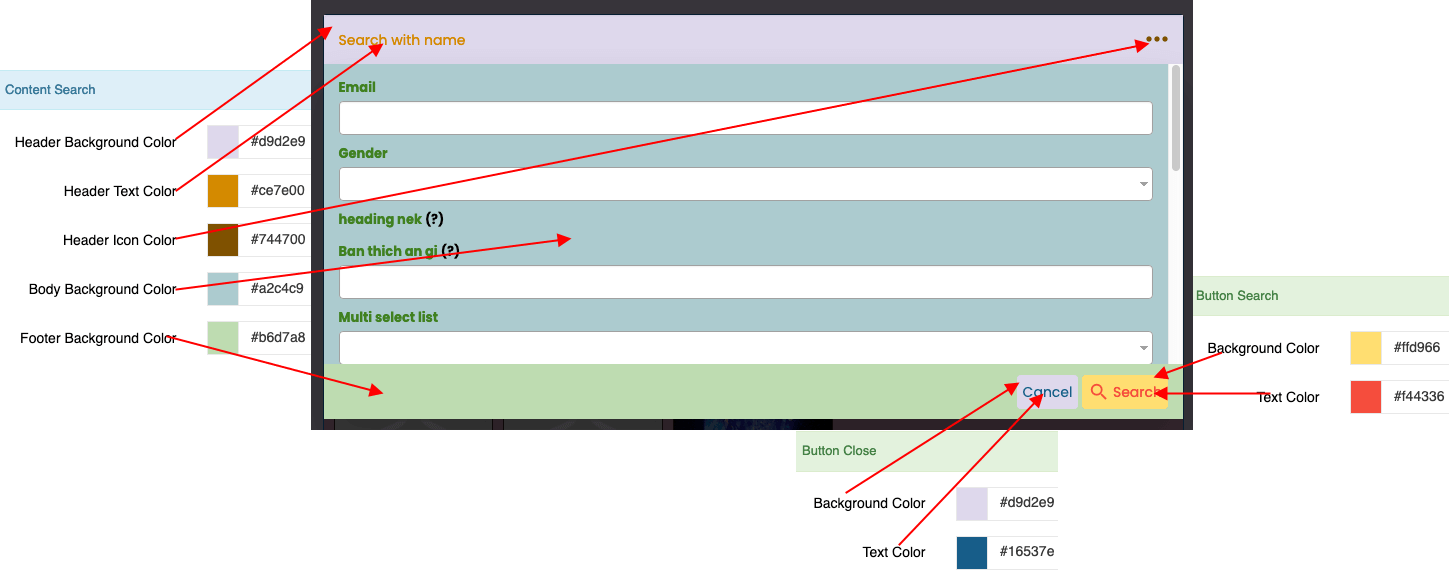
# Modal settings
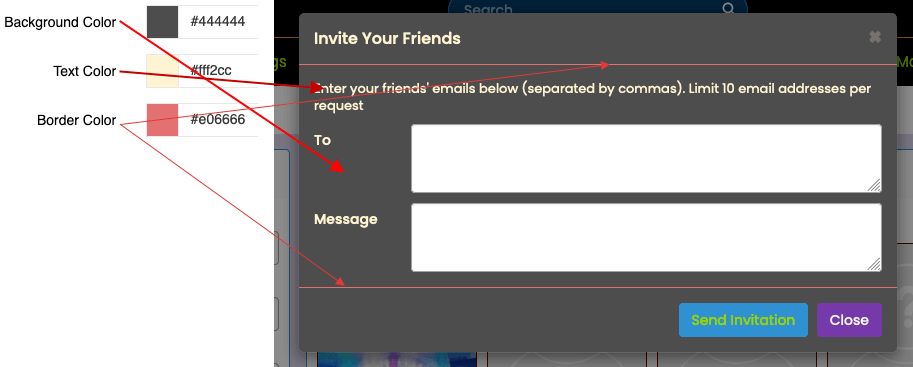
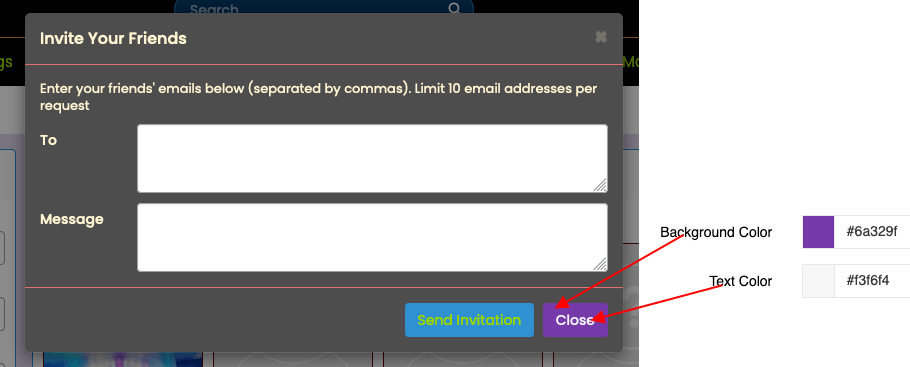
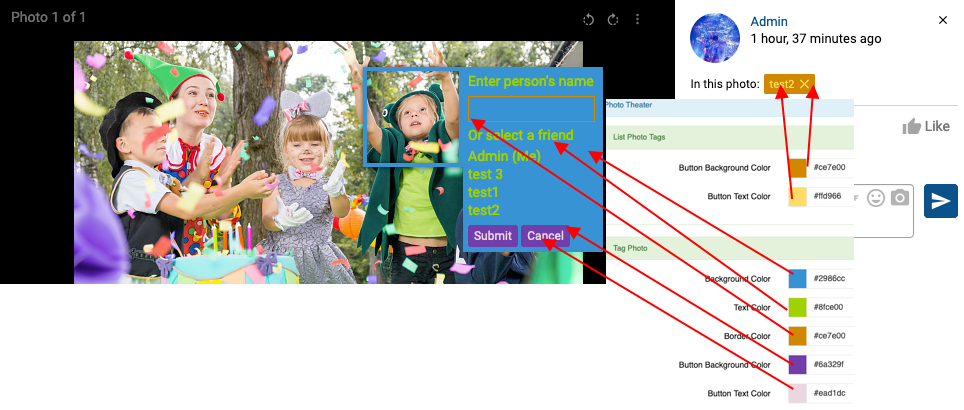
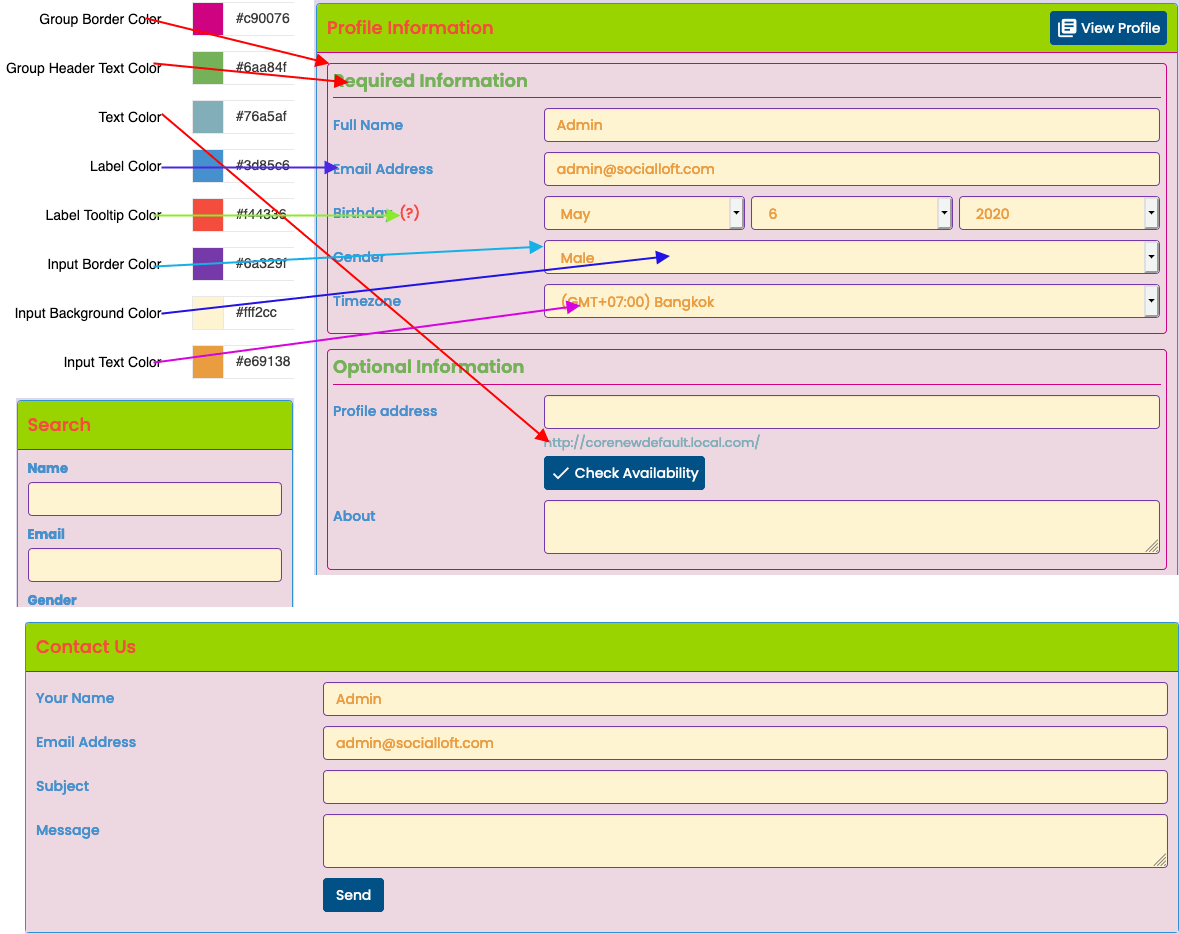
# Form
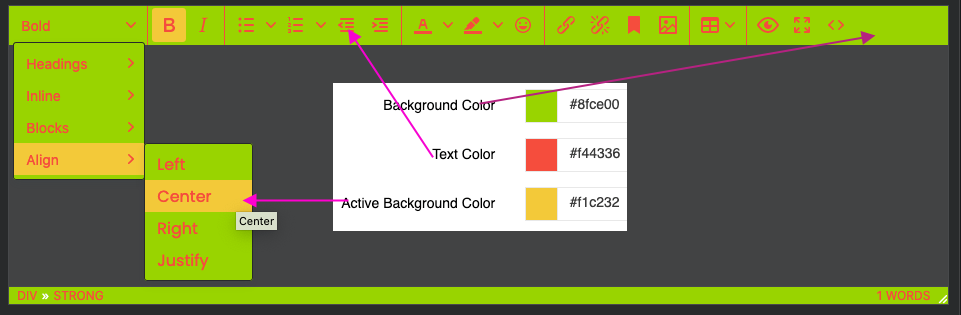
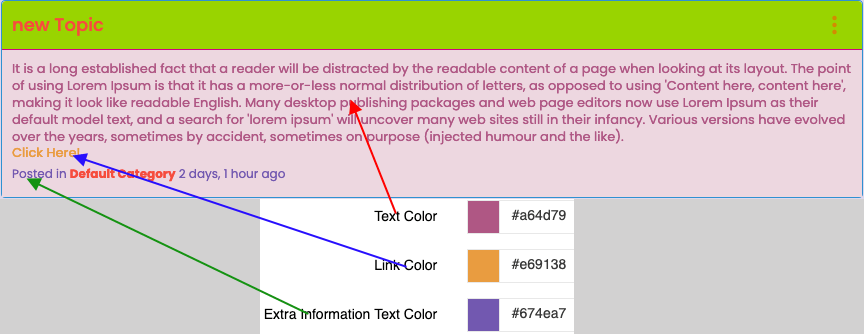
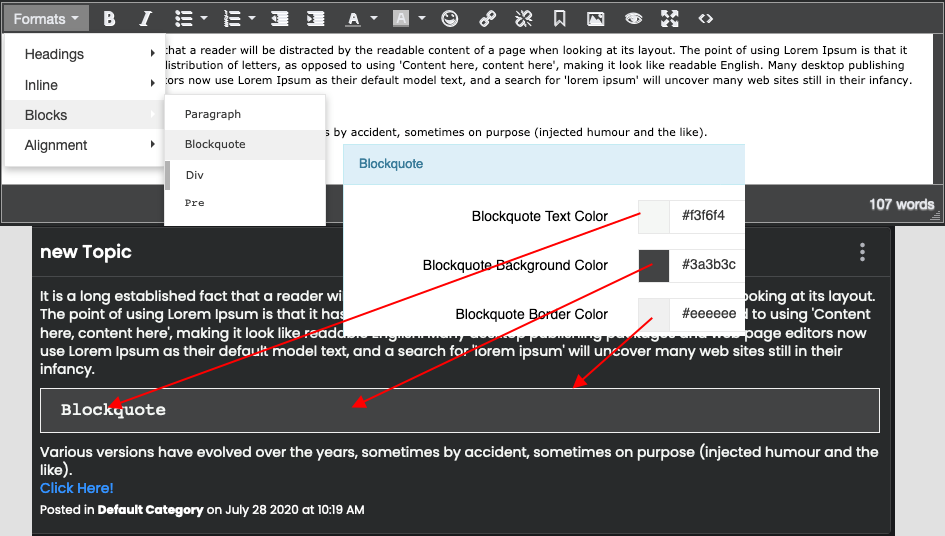
# Content
# Mobile Responsive
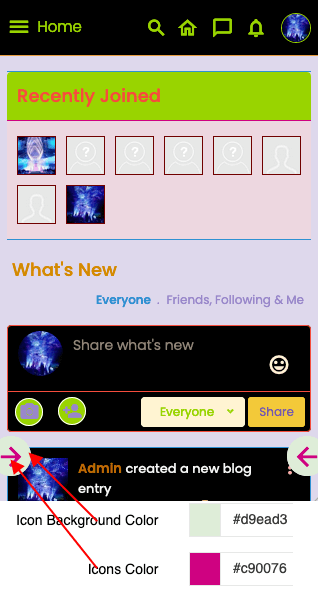
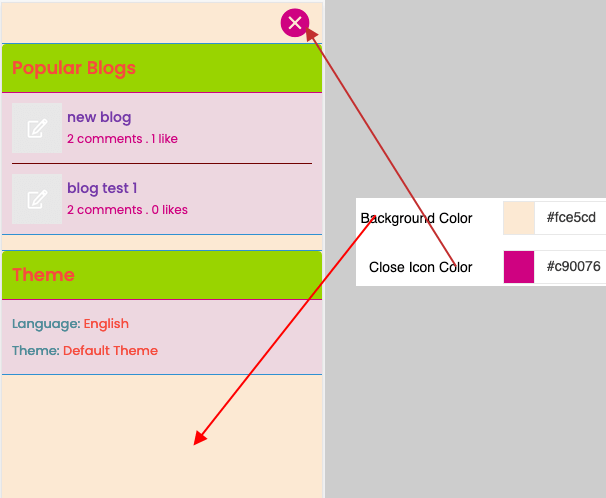
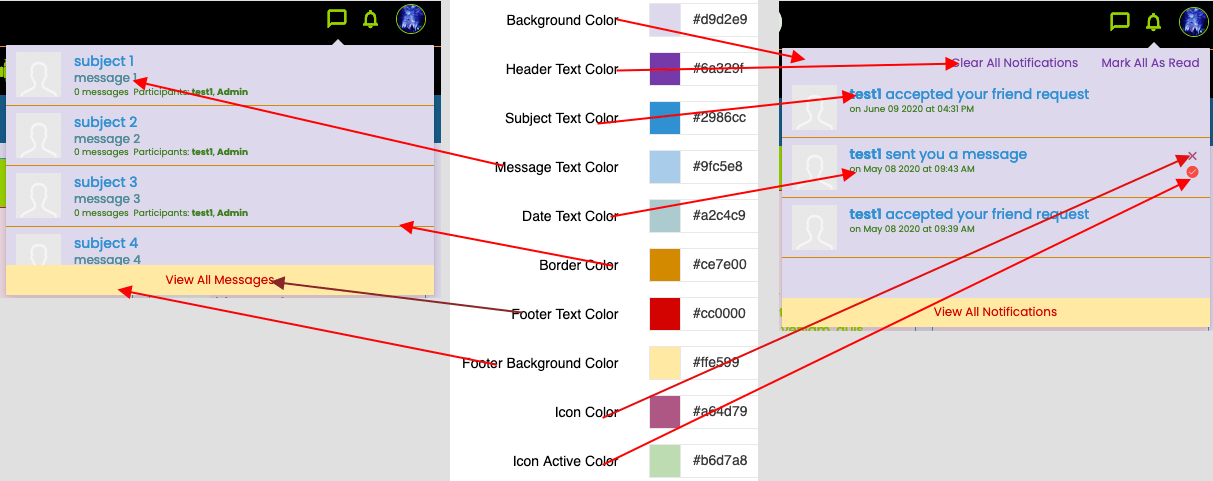
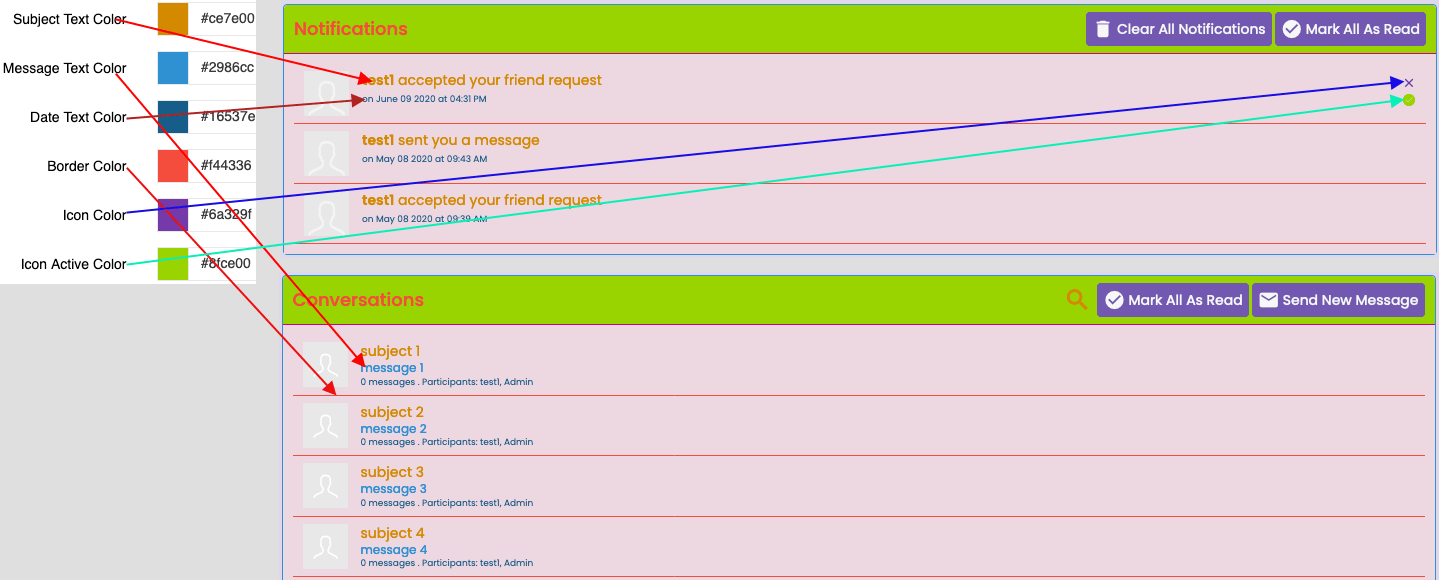
# Notification
# More SEction
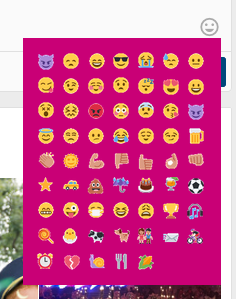
#Emoji
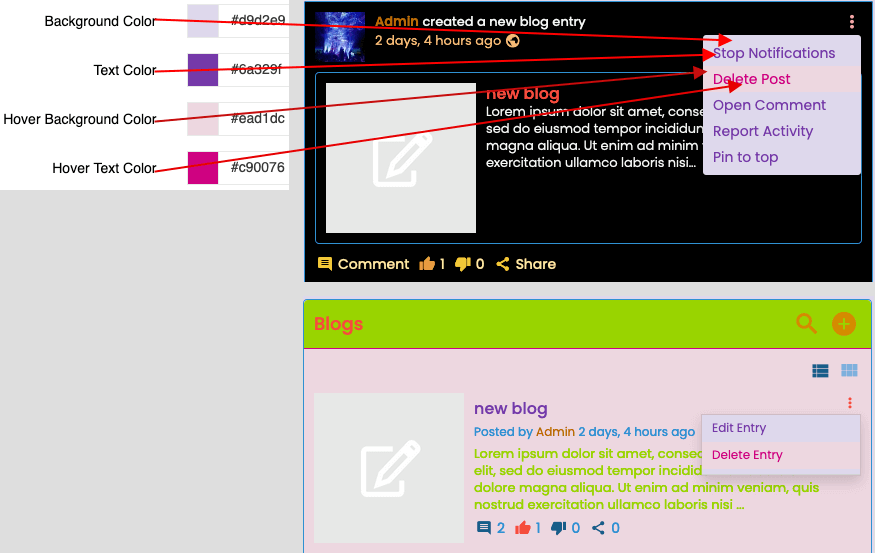
# More Menu Popup
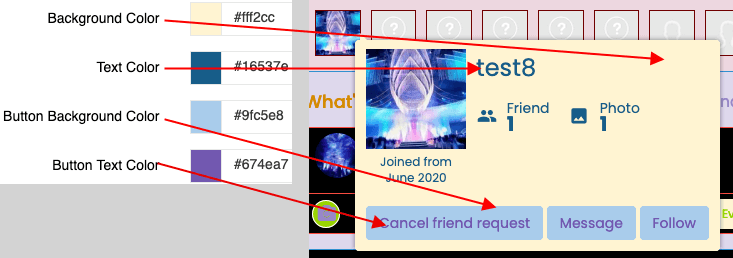
#Profile Popup
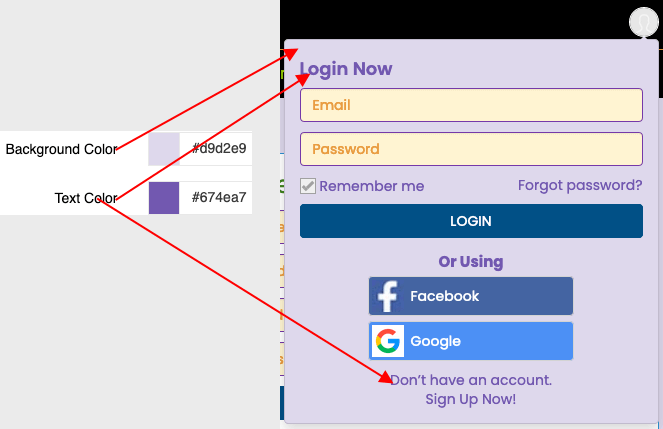
# Login Popup
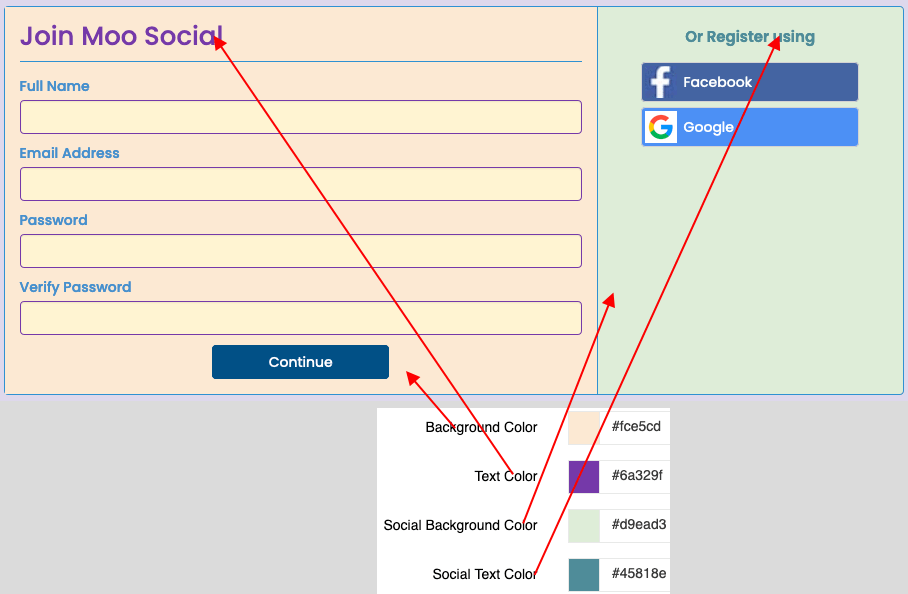
# SIgn up Page
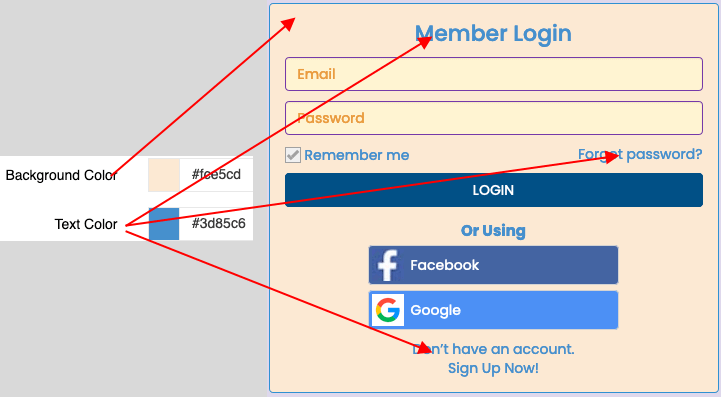
# Login Page
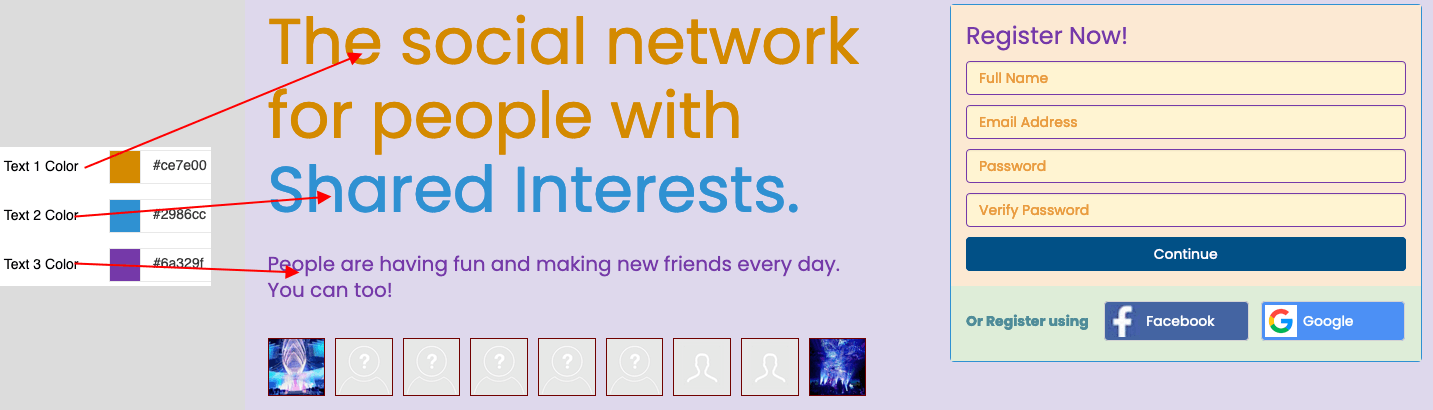
# Landing Page
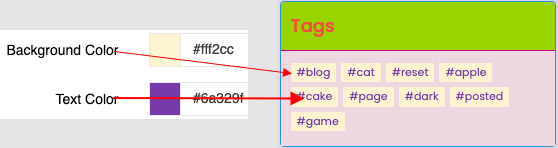
# Tags Block
#Cookies

8. Check the apply to landing page if you want your settings to applied to non login page
9. Check/Uncheck to enable or disable settings
10. You can customize dark theme like you did with light theme
12. Save and Check again your site